Take your business to the edge with HPE Solutions for Microsoft Azure Stack HPI.

Hyperconverged Infrastructure with Azure Stack HPI

Together with Microsoft, get the right configurations to bring your operations to the cloud with HPE-specific servers.

Why Choose Azure Stack HCI?
Hybrid by Design

Operate with better efficiency and at better costs when you extend your datacenter to the cloud.

Multi Levelled Security

Keep your business protected at all times with an advanced multilayer security system.

Safe & Simplified Remote Working

Our virtualized and simplified platform lets your employees work confidently and productively from home, the office, or wherever they are.

Innovative Infrastructure

Enjoy the benefits of a modernized server infrastructure, such as a modern app platform and software-defined storage.

How Azure Stack HCI Benefits Your Business
  • INCREASED PROFITABILITY

    Boost the efficiency of your operations through a cloud-ready, hybrid infrastructure.

  • STAY PROTECTED FROM THREATS

    A thorough, holistic security system keeps your existing infrastructure and intellectual property safe from cyberthreats.

  • BOOST WORKER ENGAGEMENT

    High-performance storage and graphics make it more engaging for your staff to operate, especially if they work remotely.

  • SAVE TIME & MONEY

    Streamlined tools across on-premises and cloud will free up resources in your IT team so they can focus on more important tasks at hand.

  • DRIVE OVERALL EFFICIENCY

    By embracing server modernization, your datacenter efficiency increases and allows for overall operational improvement.

Choose Your Configuration

ProLiant Intel-Based Solutions

View Products
ProLiant Intel-Based Solutions
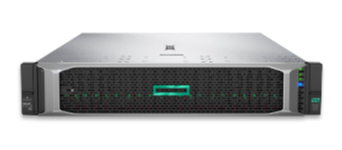
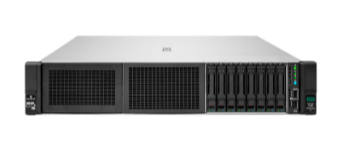
ProLiant DL380 Gen10 Plus

Scale: 2 to 16 Nodes CPU: 4 to 40 cores total (Intel) 1 or 2 Processors RAM: 64GB to 8TB Networking: up to 25Gb iWARP or 100Gb RoCe External JBOD: D3000 (SAS Only) Chassis: 2U, SFF or LFF

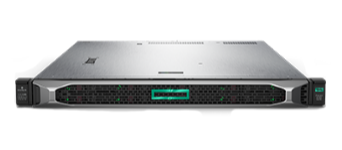
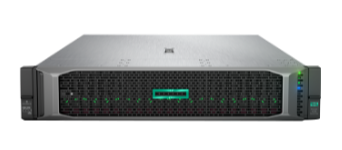
ProLiant DL380 Gen10

Scale: 2 to 16 Nodes CPU: 4 to 56 cores total (Intel) 1 or 2 Processors RAM: 64GB to 3TB Networking: up to 25Gb iWARP or 100Gb RoCe External JBOD: D3000 (SAS Only) Chassis: 2U, SFF or LFF

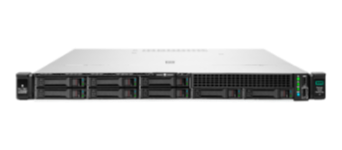
Proliant DL360 Gen10 Plus

Scale: 2 to 16 Nodes CPU: 4 to 40 cores total (Intel) 1 or 2 Processors RAM: 64GB to 8TB Networking: up to 25Gb iWARP or 100Gb RoCE External JBOD: D3000 (SAS Only) Chassis: 2U, SFF or LFF

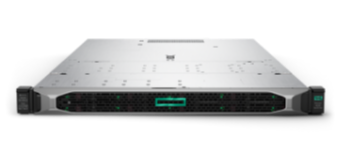
Proliant DL360 Gen10

Scale: 2 to 16 Nodes CPU: 4 to 56 cores total (Intel) 1 or 2 Processors RAM: 64GB to 3TB Networking: up to 25Gb iWARP or RoCE External JBOD: D3000 (SAS Only) Chassis: 1U, SFF

ProLiant AMD EPYC-Based Solutions

View Products
ProLiant AMD EPYC-Based Solutions
ProLiant DL325 Gen10 Plus v2

Scale: 2 to 16 Nodes CPU: 8 to 64 cores total (AMD) 1 Processor RAM: 64GB to 4TB Networking: up to 25Gb iWARP or 100Gb RoCE External JBOD: D3000 (SAS Only) Chassis: 1U, SFF

ProLiant DL325 Gen10 Plus

Scale: 2 to 16 Nodes CPU: 8 to 64 cores total (AMD) 1 Processor RAM: 64GB to 4TB Networking: up to 25Gb iWARP or RoCE External JBOD: D3000 (SAS Only) Chassis: 1U, SFF

ProLiant DL325 Gen10

Scale: 2 to 4 Nodes CPU: 8 to 64 cores total (AMD) 1 Processor RAM: 64GB to 2TB Networking: up to 25Gb iWARP or RoCE External JBOD: D3000 (SAS Only) Chassis: 1U, SFF

ProLiant DL385 Gen10 Plus v2

Scale: 2 to 16 Nodes CPU: 8 to 128 cores total (AMD) 1 or 2 Processors RAM: 64GB to 4TB Networking: up to 25Gb iWARP or 100Gb RoCE External JBOD: D3000 (SAS Only) Chassis: 2U, SFF or LFF

ProLiant DL385 Gen10 Plus

Scale: 2 to 16 Nodes CPU: 8 to 128 cores total (AMD) 1 or 2 Processors RAM: 64GB to 4TB Networking: up to 25Gb iWARP or 100Gb RoCE External JBOD: D3000 (SAS Only) Chassis: 2U, SFF or LFF

ProLiant DL385 Gen10

Scale: 2 to 16 Nodes CPU: 8 to 128 cores total (AMD) 1 or 2 Processors RAM: 64GB to 4TB Networking: up to 25Gb iWARP or 100Gb RoCE External JBOD: D3000 (SAS Only) Chassis: 2U, SFF or LFF

HPE Workload Optimized Solutions

View Products
HPE Workload Optimized Solutions
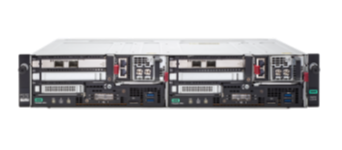
Edgeline EL8000t

Scale: 2 to 8 e910 compute Blades CPU: 8 to 28 cores total (Intel) 1 Processor per Blade RAM: 64GB to 1.5TB Networking: up to 40Gb RoCE Chassis: 2U, M.2

Edgeline EL8000

Scale: 2 to 8 e910 compute Blades CPU: 8 to 24 cores total (Intel) 1 Processor per Blade RAM: 64GB to 1.5TB Networking: up to 40Gb RoCE Chassis: 5U half width, M.2

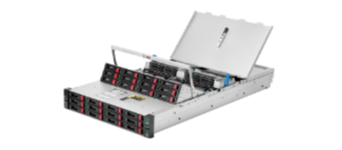
Apollo 4200 Gen10

Scale: 2 to 16 Nodes CPU: 8 to 56 cores total (Intel) 1 or 2 Processors RAM: 64GB to 2TB Networking: up to 25Gb iWARP or 100Gb RoCE Chassis: 2U, SFF or LFF

ProLiant Intel-Based Solutions
ProLiant DL380 Gen10 Plus

Scale: 2 to 16 Nodes CPU: 4 to 40 cores total (Intel) 1 or 2 Processors RAM: 64GB to 8TB Networking: up to 25Gb iWARP or 100Gb RoCe External JBOD: D3000 (SAS Only) Chassis: 2U, SFF or LFF

ProLiant DL380 Gen10

Scale: 2 to 16 Nodes CPU: 4 to 56 cores total (Intel) 1 or 2 Processors RAM: 64GB to 3TB Networking: up to 25Gb iWARP or 100Gb RoCe External JBOD: D3000 (SAS Only) Chassis: 2U, SFF or LFF

Proliant DL360 Gen10 Plus

Scale: 2 to 16 Nodes CPU: 4 to 40 cores total (Intel) 1 or 2 Processors RAM: 64GB to 8TB Networking: up to 25Gb iWARP or 100Gb RoCE External JBOD: D3000 (SAS Only) Chassis: 2U, SFF or LFF

Proliant DL360 Gen10

Scale: 2 to 16 Nodes CPU: 4 to 56 cores total (Intel) 1 or 2 Processors RAM: 64GB to 3TB Networking: up to 25Gb iWARP or RoCE External JBOD: D3000 (SAS Only) Chassis: 1U, SFF

ProLiant AMD EPYC-Based Solutions
ProLiant DL325 Gen10 Plus v2

Scale: 2 to 16 Nodes CPU: 8 to 64 cores total (AMD) 1 Processor RAM: 64GB to 4TB Networking: up to 25Gb iWARP or 100Gb RoCE External JBOD: D3000 (SAS Only) Chassis: 1U, SFF

ProLiant DL325 Gen10 Plus

Scale: 2 to 16 Nodes CPU: 8 to 64 cores total (AMD) 1 Processor RAM: 64GB to 4TB Networking: up to 25Gb iWARP or RoCE External JBOD: D3000 (SAS Only) Chassis: 1U, SFF

ProLiant DL325 Gen10

Scale: 2 to 4 Nodes CPU: 8 to 64 cores total (AMD) 1 Processor RAM: 64GB to 2TB Networking: up to 25Gb iWARP or RoCE External JBOD: D3000 (SAS Only) Chassis: 1U, SFF

ProLiant DL385 Gen10 Plus v2

Scale: 2 to 16 Nodes CPU: 8 to 128 cores total (AMD) 1 or 2 Processors RAM: 64GB to 4TB Networking: up to 25Gb iWARP or 100Gb RoCE External JBOD: D3000 (SAS Only) Chassis: 2U, SFF or LFF

ProLiant DL385 Gen10 Plus

Scale: 2 to 16 Nodes CPU: 8 to 128 cores total (AMD) 1 or 2 Processors RAM: 64GB to 4TB Networking: up to 25Gb iWARP or 100Gb RoCE External JBOD: D3000 (SAS Only) Chassis: 2U, SFF or LFF

ProLiant DL385 Gen10

Scale: 2 to 16 Nodes CPU: 8 to 128 cores total (AMD) 1 or 2 Processors RAM: 64GB to 4TB Networking: up to 25Gb iWARP or 100Gb RoCE External JBOD: D3000 (SAS Only) Chassis: 2U, SFF or LFF

HPE Workload Optimized Solutions
Edgeline EL8000t

Scale: 2 to 8 e910 compute Blades CPU: 8 to 28 cores total (Intel) 1 Processor per Blade RAM: 64GB to 1.5TB Networking: up to 40Gb RoCE Chassis: 2U, M.2

Edgeline EL8000

Scale: 2 to 8 e910 compute Blades CPU: 8 to 24 cores total (Intel) 1 Processor per Blade RAM: 64GB to 1.5TB Networking: up to 40Gb RoCE Chassis: 5U half width, M.2

Apollo 4200 Gen10

Scale: 2 to 16 Nodes CPU: 8 to 56 cores total (Intel) 1 or 2 Processors RAM: 64GB to 2TB Networking: up to 25Gb iWARP or 100Gb RoCE Chassis: 2U, SFF or LFF

HPE Workload Optimized Solutions
  • How does Azure Stack HCI use the cloud?

    Azure Stack HCI is an on-premises hyperconverged infrastructure stack delivered as an Azure hybrid service. You install the Azure Stack HCI software on physical servers that you control on your premises. Then you connect to Azure for cloud-based monitoring, support, billing, and optional management and security features. This FAQ section clarifies how Azure Stack HCI uses the cloud by addressing frequently asked questions about connectivity requirements and behavior.

  • Does my data stored on Azure Stack HCI get sent to the cloud?

    No. Customer data, including the names, metadata, configuration, and contents of your on-premises virtual machines (VMs) is never sent to the cloud unless you turn on additional services, like Azure Backup or Azure Site Recovery, or unless you enroll those VMs individually into cloud management services like Azure Arc. Because Azure Stack HCI doesn't store customer data in the cloud, business continuity disaster recovery (BCDR) for the customer's on-premises data is defined and controlled by the customer. To set up your own site-to-site replication using a stretched cluster, see Stretched clusters overview. To learn more about the diagnostic data we collect to keep Azure Stack HCI secure, up to date, and working as expected, see Azure Stack HCI data collection and Data residency in Azure.

  • Does the control plane for Azure Stack HCI go through the cloud?

    No. You can use edge-local tools, such as Windows Admin Center, PowerShell, or System Center, to manage directly the host infrastructure and VMs even if your network connection to the cloud is down or severely limited. Common everyday operations, such as moving a VM between hosts, replacing a failed drive, or configuring IP addresses don’t rely on the cloud. However, cloud connectivity is required to obtain over-the-air software updates, change your Azure registration, or use features that directly rely on cloud services for backup, monitoring, and more.

  • Are there bandwidth or latency requirements between Azure Stack HCI and the cloud?

    No. Limited-bandwidth connections like rural T1 lines or satellite/cellular connections are adequate for Azure Stack HCI to sync. The minimum required connectivity is just several kilobytes per day. Additional services may require additional bandwidth, especially to replicate or back up whole VMs, download large software updates, or upload verbose logs for analysis and monitoring in the cloud.

  • Does Azure Stack HCI require continuous connectivity to the cloud?

    No. Azure Stack HCI is designed to handle periods of limited or zero connectivity.

  • What happens if my network connection to the cloud temporarily goes down?

    While your connection is down, all host infrastructure and VMs continue to run normally, and you can use edge-local tools for management. You would not be able to use features that directly rely on cloud services. Information in the Azure portal also would become out-of-date until Azure Stack HCI is able to sync again.

  • How long can Azure Stack HCI run with the connection down?

    At the minimum, Azure Stack HCI needs to sync successfully with Azure once per 30 consecutive days.

  • What happens if the 30-day limit is exceeded?

    If Azure Stack HCI hasn’t synced with Azure in more than 30 consecutive days, the cluster’s connection status will show Out of policy in the Azure portal and other tools, and the cluster will enter a reduced functionality mode. In this mode, the host infrastructure stays up and all current VMs continue to run normally. However, new VMs can’t be created until Azure Stack HCI is able to sync again. The internal technical reason is that the cluster’s cloud-generated license has expired and needs to be renewed by syncing with Azure.

  • What content does Azure Stack HCI sync with the cloud?

    This depends on which features you’re using. At the minimum, Azure Stack HCI syncs basic cluster information to display in the Azure portal (like the list of clustered nodes, hardware model, and software version); billing information that summarizes accrued core-days since the last sync; and minimal required diagnostic information that helps Microsoft keep your Azure Stack HCI secure, up-to-date, and working properly. The total size is small – a few kilobytes. If you turn on additional services, they may upload more: for example, Azure Log Analytics would upload logs and performance counters for monitoring.

  • How often does Azure Stack HCI sync with the cloud?

    This depends on which features you’re using. At the minimum, Azure Stack HCI will try to sync every 12 hours. If sync doesn’t succeed, the content is retained locally and sent with the next successful sync. In addition to this regular timer, you can manually sync any time, using either the Sync-AzureStackHCI PowerShell cmdlet or from Windows Admin Center. If you turn on additional services, they may upload more frequently: for example, Azure Log Analytics would upload every 5 minutes for monitoring.

  • Where does the synced information actually go?

    Azure Stack HCI syncs with Azure and stores data in a secure, Microsoft-operated datacenter. To learn more about the diagnostic data we collect to keep Azure Stack HCI secure, up to date, and working as expected, see Azure Stack HCI data collection and Data residency in Azure.

  • Can I use Azure Stack HCI and never connect to Azure?

    No. Azure Stack HCI needs to sync successfully with Azure once per 30 consecutive days.

  • Can I transfer data offline between an "air-gapped" Azure Stack HCI and Azure?

    No. There is currently no mechanism to register and sync between on-premises and Azure without network connectivity. For example, you can't transport certificates or billing data using removable storage. If there is sufficient customer demand, we're open to exploring such a feature in the future. Let us know in the Azure Stack HCI feedback forum.

  • How does Azure Stack HCI relate to Windows Server?

    Windows Server is the foundation of nearly every Azure product, and all the features you value continue to release with support in Windows Server. The initial offering of Azure Stack HCI was based on Windows Server 2019 and used the traditional Windows Server licensing model. Today, Azure Stack HCI has its own operating system and subscription-based licensing model. Azure Stack HCI is the recommended way to deploy HCI on-premises, using Microsoft-validated hardware from our partners.

  • Which guest operating systems are supported on Azure Stack HCI?

    Azure Stack HCI supports several guest operating systems. For more information, see Supported Windows guest operating systems for Hyper-V on Windows Server.

  • Can I upgrade from Windows Server 2019 to Azure Stack HCI?

    There is no in-place upgrade from Windows Server to Azure Stack HCI at this time. Stay tuned for specific migration guidance for customers running hyperconverged clusters based on Windows Server 2019 and 2016.

  • What Azure services can I connect to Azure Stack HCI?

    For an updated list of Azure services that you can connect Azure Stack HCI to, see Connecting Windows Server to Azure hybrid services.

  • What do the Azure Stack Hub and Azure Stack HCI solutions have in common?

    Azure Stack HCI features the same Hyper-V-based software-defined compute, storage, and networking technologies as Azure Stack Hub. Both offerings meet rigorous testing and validation criteria to ensure reliability and compatibility with the underlying hardware platform.

  • How are the Azure Stack Hub and Azure Stack HCI solutions different?

    With Azure Stack Hub, you run cloud services on-premises. You can run Azure IaaS and PaaS services on-premises to consistently build and run cloud apps anywhere, managed with the Azure portal on-premises. With Azure Stack HCI, you run virtualized workloads on-premises, managed with Windows Admin Center and familiar Windows Server tools. You can also connect to Azure for hybrid scenarios like cloud-based Site Recovery, monitoring, and others.

  • Can I upgrade from Azure Stack HCI to Azure Stack Hub?

    No, but customers can migrate their workloads from Azure Stack HCI to Azure Stack Hub or Azure.

  • How do I identify an Azure Stack HCI server?

    Windows Admin Center lists the operating system in the All Connections list and various other places, or you can use the following PowerShell command to query for the operating system name and version.